How to Export Your Data Before a SaaS Tool Shuts Down

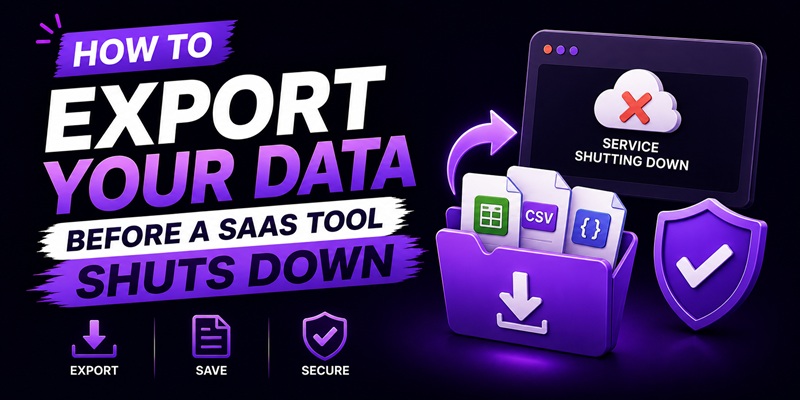
If a shutdown notice just arrived and time is short, export in this order: anything you cannot recreate from another source, anything actively used in current work, then everything else. Export the raw data first, formatting and organization can be rebuilt later, but deleted history cannot. This order works whether you’re reacting to a notice today or building the habit before you ever need it, which is the better position to be in.
This is the action checklist. The companion piece, what happens to your data when a tool shuts down, explains the mechanic behind why this matters and why the outcome varies so much by company.
Do this now, before any shutdown notice exists
The single best time to check a tool’s export capability is during your evaluation, before you’ve built months of work inside it, not after a shutdown notice forces the question.
- Find the export feature before you rely on the tool. Confirm it exists, note where it lives in the interface, and check what format it produces. A tool with no visible export option at all is a red flag worth weighing before you commit, covered in the red flags checklist.
- Export on a schedule, not only in a crisis. Set a recurring reminder, monthly or quarterly depending on how much you produce inside the tool, to pull a fresh export regardless of whether anything looks wrong. This turns “export before shutdown” into a standing habit rather than a scramble.
- Store exports somewhere independent of the tool itself. A backup that lives only inside the same account you’re trying to protect against isn’t a backup. Keep exports in your own cloud storage or local drive.
What to do the day a shutdown notice arrives
If you’re reading this because a notice just landed in your inbox, move in this order:
- Read the notice fully before doing anything, specifically for the hard date and whether an export tool or process is mentioned. Don’t assume; the notice may reference a specific button or a support request process you need to follow exactly.
- Export whatever you cannot recreate elsewhere, first. This is usually the actual content you built inside the tool: your written work, your configured project, your accumulated history. Feature settings and preferences can be rebuilt in a new tool; original content generally cannot.
- Export anything tied to current, active work next. If you have a project mid-flight, get that data out before anything archival or rarely used.
- Export everything else last, if time allows. Old projects, historical logs, anything you haven’t touched in months, still worth getting if the window allows it, but not at the expense of the first two categories.
- Confirm the export actually opened and contains what you expect, before the account becomes inaccessible. A failed or partial export you don’t discover until access is already gone defeats the entire point of exporting early.
The data formats that actually survive a move
Not every export format is equally useful once you’re trying to use the data somewhere else.
- Prefer open, widely supported formats like CSV, JSON, or plain text over a tool’s own proprietary export format, when you have a choice. A proprietary format may require the very tool that’s shutting down to open it again later.
- Check whether the export includes structure, not just raw values. A spreadsheet of disconnected numbers is less useful than one that preserves the relationships between records, if the tool’s export offers that option.
- Screenshot or PDF anything that won’t export cleanly. Some content, custom layouts, visual configurations, dashboards, doesn’t translate to a clean file export. A screenshot or printed PDF is a poor substitute for structured data, but it’s better than nothing when no better option exists.
What to do if the export function itself is broken or missing
Sometimes the tool you’re trying to leave doesn’t make this easy, especially during a rushed or under-resourced shutdown.
- Try the support channel immediately, even if it looks unstaffed. A skeleton crew winding down a product may still be checking a queue even after visible development has stopped. It costs nothing to ask.
- Check for a browser extension or third-party tool built for exactly this purpose. For some widely used categories of software, independent developers build export or scraping tools specifically for users stranded by a shutdown. Search for the product name alongside “export” or “backup” before assuming nothing exists.
- As a last resort, manually copy what you can, in the time you have. This is slow and incomplete, but it’s better than nothing, and it should be treated as the fallback, not the plan, which is exactly why exporting on a schedule before this point matters so much.
A short pre-purchase habit that prevents most of this
The single most effective thing you can do about all of the above happens before you ever need any of it: check a tool’s export capability during the evaluation stage, while you’re still deciding whether to buy, not after months of work are already locked inside it. This takes two minutes. Open the account settings or a help-doc search for “export,” confirm the feature exists, and note the format it produces. If a tool has no visible export path at all, that’s information worth weighing against everything else in the lifetime deal framework before you commit money to it, not something to discover for the first time when a shutdown notice arrives.
Pairing that early check with a recurring export habit closes most of the gap this whole page exists to cover. The rest, reacting well on the day a notice actually lands, matters far less if you were never depending on that day to be your only chance to get your data out.
FAQ
What should I export first if I only have time for some of it?
Whatever you cannot recreate from another source, your original content and accumulated work, ahead of settings, preferences, or archival material you rarely touch. Raw data first; formatting and organization can be rebuilt later.
How often should I export data from a tool I depend on, even if nothing looks wrong?
On a recurring schedule, monthly or quarterly depending on how much you produce, rather than only in response to a shutdown notice. This is the single habit that removes most of the risk covered in the shutdown mechanics piece.
What file format should I export to?
Open, widely supported formats like CSV, JSON, or plain text when the tool offers a choice. Proprietary export formats can require the original tool to open them again later, which defeats the purpose if that tool is the one shutting down.
What if the tool doesn’t offer an export feature at all?
Try support directly, even during a wind-down, since a skeleton crew may still respond. Also check whether an independent developer has built a third-party export tool for that product category. Manual copying is the last resort, not the plan.
Is exporting data only necessary for lifetime deals, or does this apply to subscriptions too?
It applies to any SaaS tool your work depends on, subscription or lifetime deal alike. A subscription you can cancel doesn’t protect your data any differently than a lifetime deal does if the company itself shuts down; the export habit matters regardless of how you’re paying.
